 Bettertori Docs
Notifications
Stay up-to-date with new items from your tracked Tori.fi searches. Learn how BetterTori's notification system alerts you to new listings and important changes.
Notifications
BetterTori's notification system keeps you informed whenever new items matching your tracked searches appear on Tori.fi. You'll receive real-time alerts for new listings and status changes, all organized in one convenient place.
How Notifications Work
Whenever BetterTori parses an email from Tori.fi containing new items matching your saved searches, it automatically creates notifications for you. This ensures you never miss a great deal or newly listed item.
┌─────────────────────────────────────────────────────────────────────────────┐
│                    NOTIFICATION FLOW                                         │
└─────────────────────────────────────────────────────────────────────────────┘

   New Email                              BetterTori                         You
      │                                       │                               │
      ▼                                       ▼                               ▼
┌──────────┐      ┌──────────────┐      ┌──────────────┐      ┌──────────────────┐
│  Tori.fi │      │   Parser     │      │ Notification │      │   In-App         │
│  sends   │─────▶│   Lambda     │─────▶│   Created    │─────▶│   Notification   │
│  email   │      │   processes  │      │   for you    │      │   Badge +1       │
└──────────┘      └──────────────┘      └──────────────┘      └──────────────────┘
       │               │                      │                      │
       │               │                      │                      │
   "New iPhone     Extract items         Each new item         Red badge on
    listings"      from email            = notification        Notifications
                                                            icon in sidebar

┌─────────────────────────────────────────────────────────────────────────────┐
│                    NOTIFICATION TYPES                                        │
├─────────────────────────────────────────────────────────────────────────────┤
│                                                                              │
│  🟢 NEW ITEM              🟡 ITEM SOLD                                      │
│  ┌──────────────┐        ┌──────────────┐                                   │
│  │              │        │              │                                   │
│  │  [Photo]     │        │  [Photo]     │  Red background indicates        │
│  │  iPhone 14   │        │  iPhone 14   │  item is no longer available     │
│  │  €699        │        │  €699 SOLD   │                                   │
│  │  Helsinki    │        │  Helsinki    │                                   │
│  │              │        │              │                                   │
│  └──────────────┘        └──────────────┘                                   │
│                                                                              │
│  • Green dot = Unread      • Red styling = Sold                             │
│  • Click to view item      • Grayed out = Read                              │
│                                                                              │
└─────────────────────────────────────────────────────────────────────────────┘
Notification Types
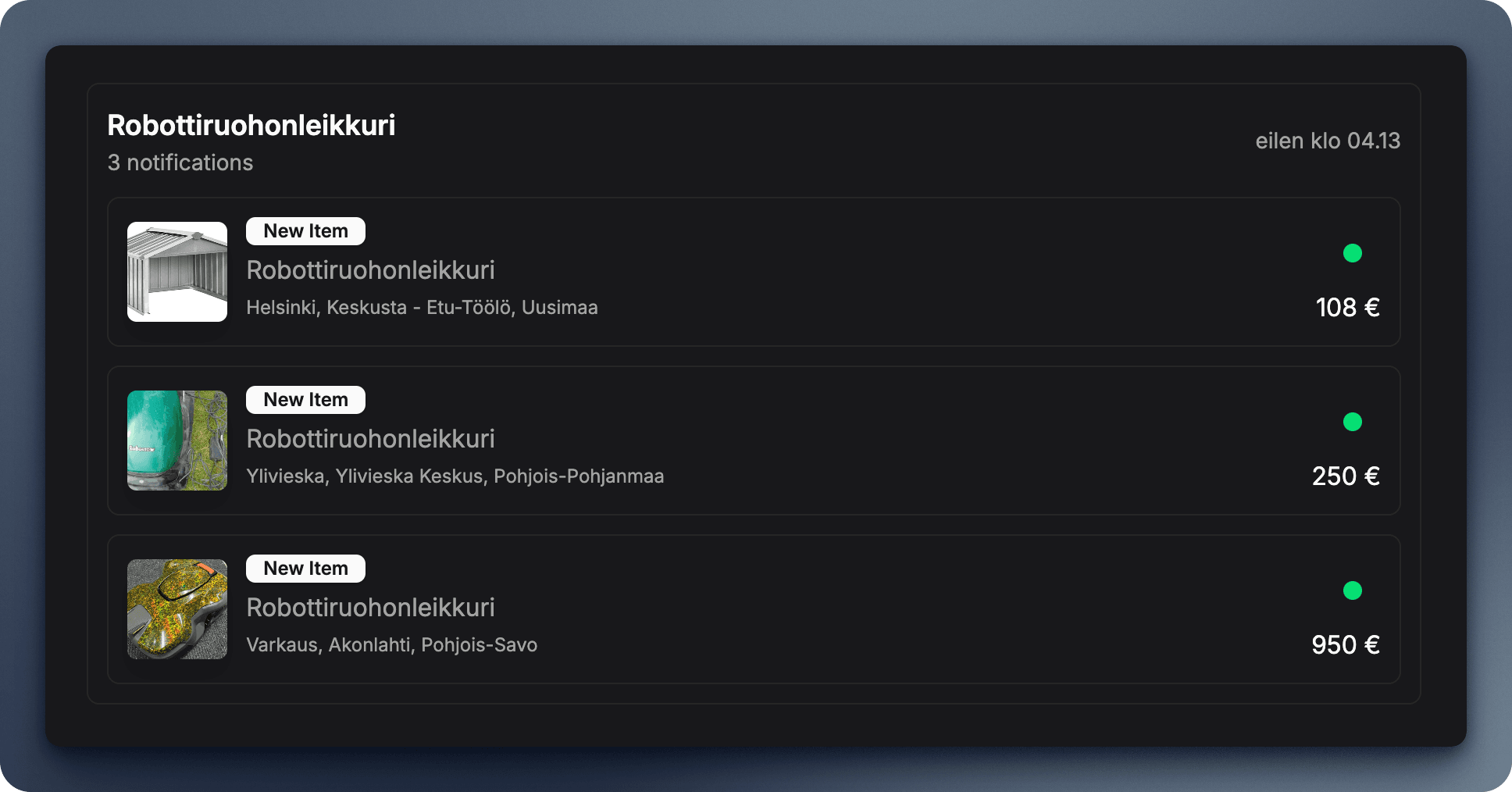
New Item Notifications
When a new item matching your tracked product category is found, you'll receive a notification containing:
- Item Image: Photo of the product
- Product Name: The listing title
- Price: Current asking price
- Location: Where the seller is located
- Event Badge: Shows "new item"
- Timestamp: When the notification was created
Item Sold Notifications
If BetterTori detects that a tracked item has been sold (marked as sold on Tori.fi), you'll receive a special notification:
- Red Styling: Distinctive red background to catch your attention
- Sold Badge: Clearly marked as "item sold"
- Still Accessible: You can still view the item details for reference
Sold notifications help you understand market trends. If items are selling quickly, you may need to act faster on future listings!
Accessing Notifications
Via the Sidebar
The Notifications icon in the left sidebar shows your unread count:
- Red Badge: Number of unread notifications
- No Badge: All notifications have been read
- Click to View: Opens the full notifications page
Notifications Page
The Notifications page displays all your alerts organized by product category.
Managing Notifications
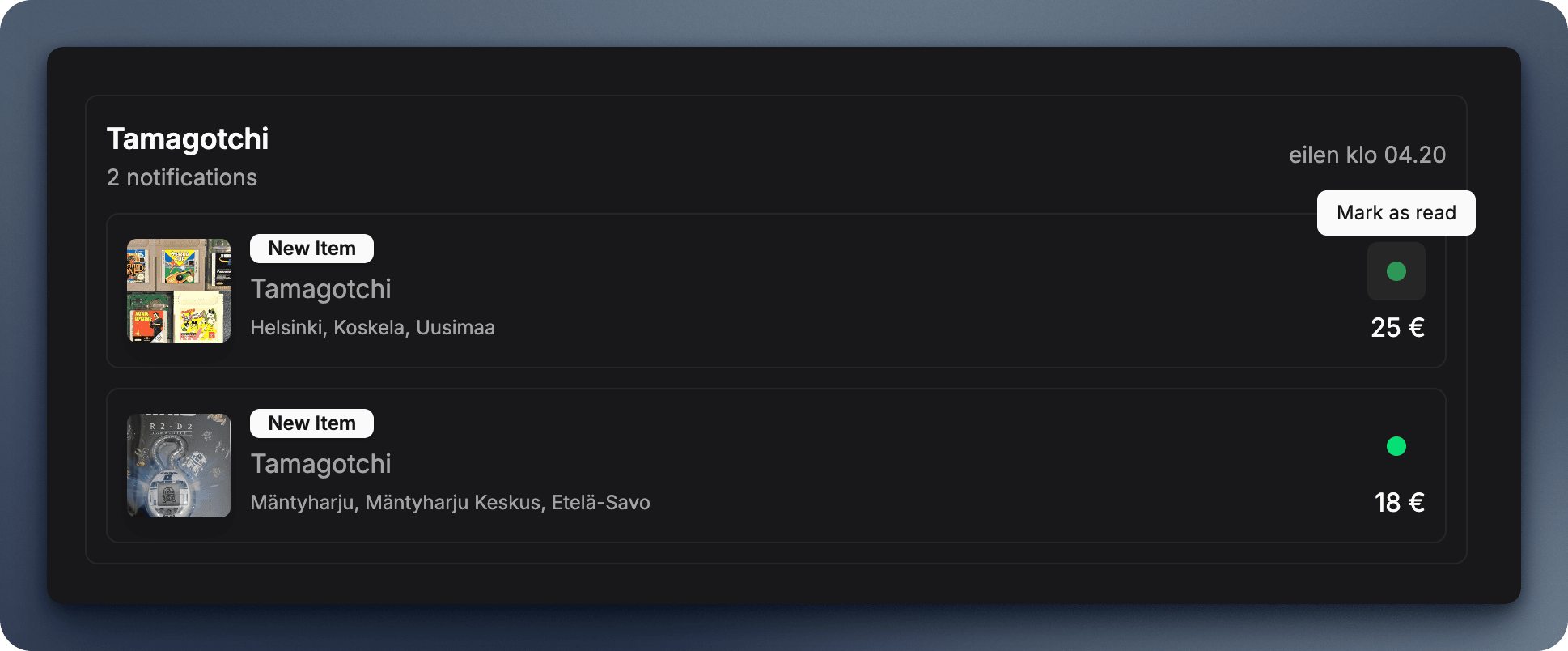
Marking as Read
Individual notifications can be marked as read:
- Hover over an unread notification
- Click the colored dot on the right side
- The notification fades to indicate it's been read
- The unread badge count decreases
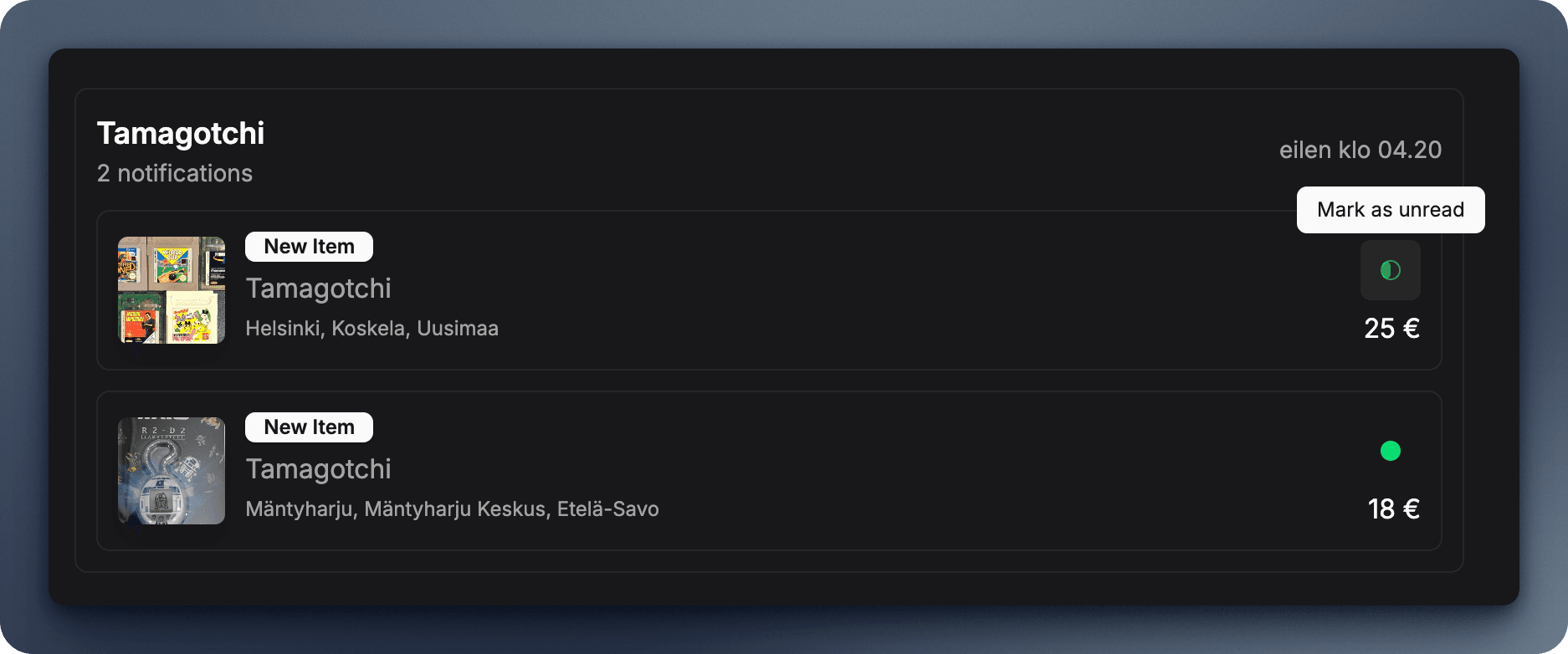
Marking as Unread
Changed your mind? You can mark read notifications as unread:
- Hover over a read notification (it will appear faded)
- Click the half-filled circle icon
- The notification returns to full opacity
- The unread badge count increases
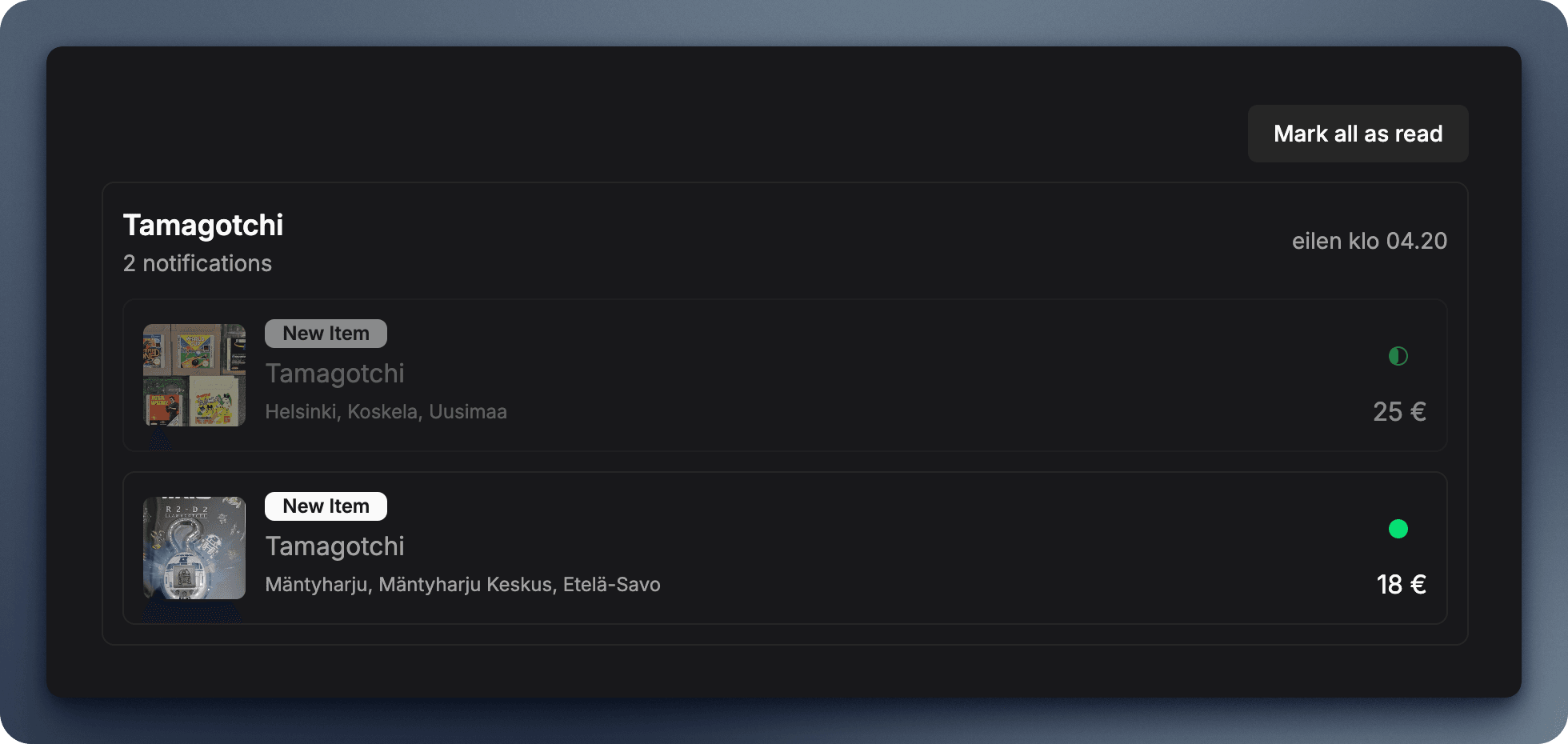
Mark All as Read
To quickly clear all notifications:
- Click the "Mark all as read" button at the top of the page
- All notifications are marked as read
- The badge disappears from the sidebar
- You can still view all notifications - they're just marked as read
Notification Organization
Grouped by Product Category
Notifications are automatically grouped by the product category they belong to:
- iPhone 14 Pro: All iPhone notifications together
- PlayStation 5: All PlayStation notifications together
- Mountain Bike: All bike notifications together
This makes it easy to focus on specific categories or scan for items you're most interested in.
Sorted by Date
Within each group, notifications are sorted by date with the newest items first. You'll always see the freshest listings at the top.
Relative Time Display
Instead of exact timestamps, you'll see friendly relative time:
- "2 hours ago"
- "Yesterday"
- "3 days ago"
Hover over the time to see the exact date and time.
Click to View Item
Every notification is clickable and takes you directly to the item detail page:
- Click anywhere on the notification card
- You're taken to the item page with full details
- View all photos, description, and seller info
- Access action buttons to visit Tori.fi or save the item
You don't need to mark notifications as read before clicking. Simply viewing an item is often enough to remember you've seen it.
Visual Indicators
Unread Notifications
- Full Opacity: Bright and clear
- Green/Red Dot: Indicator on the right side
- Bold Styling: Product names stand out
Read Notifications
- Faded/Grayed: 50% opacity
- Half-Filled Circle: Shows it's been read
- Normal Weight: Standard text styling
Sold Items
- Red Background: Distinctive styling
- Destructive Badge: Red "item sold" label
- Still Clickable: You can still view the item
Best Practices
Stay Current
- Check notifications daily for time-sensitive deals
- Mark items as read after reviewing to keep track
- Use "Mark all as read" if you have many to clear
Act Fast
Popular items can sell quickly on Tori.fi:
- Don't wait too long after receiving a notification
- Good deals often receive multiple inquiries
- Set up product categories for must-have items
Review Sold Items
Sold notifications are valuable:
- See what prices items actually sell for
- Understand market demand
- Adjust your price expectations
- Identify fast-selling categories
Filter by Category
If you track many products:
- Navigate to a specific product page
- Notifications are filtered to show only that category
- Focus on one type of item at a time
Notification Limits
BetterTori retains your notifications for a limited time (typically 30 days). Older notifications are automatically cleaned up to ensure optimal performance.
If you see an item you're interested in, don't rely on the notification being there forever. Save the item or visit it on Tori.fi promptly.
Dashboard
Explore the BetterTori Dashboard, your central hub for tracking and managing all your Tori marketplace items. Learn how to navigate the dashboard, utilize powerful filtering options, and gain insights into your listings with analytics charts.
Enable and Disable Products
Learn how to temporarily pause or resume tracking for specific product categories. Control which Tori.fi searches are active without deleting your saved products.