 Bettertori Docs
Command Palette
Master BetterTori's command palettes for lightning-fast navigation and item management. Learn how to use keyboard shortcuts to search, navigate, and manage items without touching your mouse.
Command Palette
BetterTori features two powerful command palettes that let you navigate the app and manage items using keyboard shortcuts. Once you learn these shortcuts, you'll be able to work much faster without reaching for your mouse.
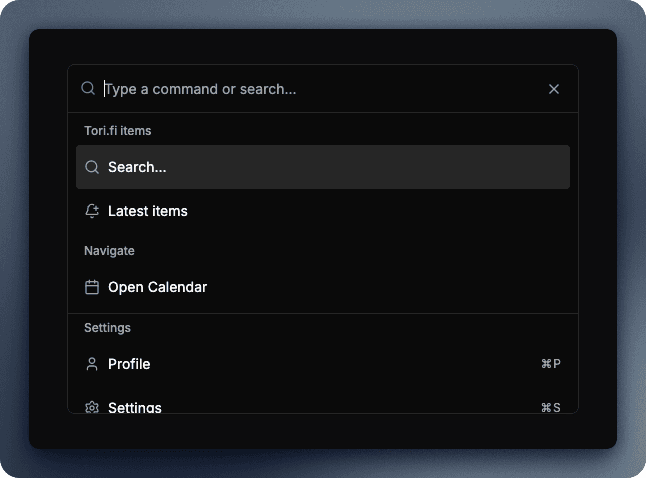
Quick Reference
| Shortcut | Action |
|---|---|
⌘ + J (Mac) / Ctrl + J (Windows) | Open global command palette |
⌘ + G (Mac) / Ctrl + G (Windows) | Open item actions palette |
Esc | Close command palette |
Backspace | Go back or close |
Global Command Palette (⌘ + J)
The global command palette is your shortcut to everywhere in BetterTori. Press ⌘ + J (or Ctrl + J on Windows) from anywhere in the app to open it.
What You Can Do
Search Your Items
The command palette lets you search through all your tracked Tori.fi items instantly:
- Press
⌘ + Jto open the palette - Select "Search..." from the menu
- Type your search query
- Results appear as you type
- Press Enter or click to navigate to an item
View Latest Items
Quickly access your most recently tracked items:
- Open the command palette with
⌘ + J - Select "Latest items"
- Browse through your recent items
- Click any item to view its details
Quick Navigation
Jump to any section of the app:
- Profile - View and manage your account (shortcut:
⌘ + P) - Settings - Configure your preferences (shortcut:
⌘ + S) - Calendar - Open the calendar view
The command palette shows you the keyboard shortcuts for each action, so you can learn them over time.
Item Actions Palette (⌘ + G)
When you're viewing a specific item, the item actions palette gives you quick access to common actions for that item. Press ⌘ + G (or Ctrl + G on Windows) to open it.
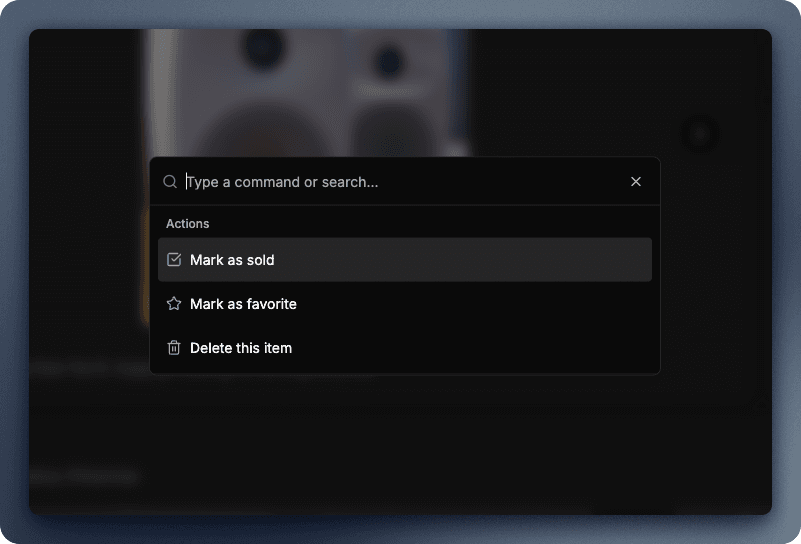
Available Actions
Mark as Sold
Quickly mark an item as sold to keep your tracking accurate:
- Open an item's detail page
- Press
⌘ + G - Select "Mark as Sold"
- The item will be marked and you'll see a confirmation
Once an item is marked as sold, the "Mark as Sold" option becomes disabled. You can identify sold items by the "Sold" badge.
Add to Favorites
Save items you're interested in for easy access later:
- Open any item
- Press
⌘ + G - Select "Mark as Favorite"
- The star icon fills in to show it's favorited
- Find all favorites on your Favorites page
Remove from Favorites
If you've changed your mind about an item:
- Open a favorited item
- Press
⌘ + G - Select "Remove from Favorites"
- The item is removed from your favorites
The palette automatically shows "Remove from Favorites" if the item is already in your favorites, and "Mark as Favorite" if it isn't.
Delete Item
Remove an item from your tracking entirely:
- Open the item
- Press
⌘ + G - Select "Delete this item"
- Confirm the deletion
Deleting an item removes it permanently from your tracking. This action cannot be undone.
Tips for Power Users
Keyboard-First Workflow
Once you learn the shortcuts, you can navigate BetterTori entirely with your keyboard:
⌘ + J→ Search → Type query → Enter → View item⌘ + G→ Mark as Favorite → DoneEscto close, then repeat
Fuzzy Search
The command palette uses fuzzy search, so you don't need to type exact matches:
- "iph" will match "iPhone 14 Pro"
- "ps5 hki" will match "PlayStation 5 Helsinki"
- "bike tamp" will match "Mountain Bike Tampere"
Stay Focused
The command palette helps you stay focused by:
- Keeping you on the current page until you choose to navigate
- Providing instant feedback as you type
- Showing relevant actions based on context
Visual Indicators
Badges in Item Actions
When you open the item actions palette, you'll see status badges:
| Badge | Meaning |
|---|---|
| Sold | Item has already been marked as sold |
| Favorited | Item is in your favorites |
These badges help you quickly understand the current state of an item.
Empty States
If no results match your search:
- The palette shows "No results found"
- Try a different search term
- Check that you're tracking the right product categories
Accessibility
The command palette is fully keyboard-accessible:
- Tab - Move between items
- Arrow keys - Navigate the list
- Enter - Select an item
- Esc - Close the palette
- Backspace - Go back or close
Screen readers will announce the palette title and available options when opened.
Common Workflows
Finding a Specific Item
⌘ + J → Search → "iPhone 15 Pro Helsinki" → EnterTracking an Item You Like
View item → ⌘ + G → Mark as FavoriteCleaning Up Sold Items
View item → ⌘ + G → Mark as SoldQuick Profile Access
⌘ + J → Profile (or ⌘ + P directly)Platform Differences
| Platform | Command Key |
|---|---|
| macOS | ⌘ (Command) |
| Windows | Ctrl |
| Linux | Ctrl |
Next Steps
- Start using
⌘ + Jto quickly navigate the app - Try adding items to favorites with
⌘ + G - Learn more about Notifications to stay updated
- Explore the Dashboard to see all your items