 Bettertori Docs
Dashboard
Explore the BetterTori Dashboard, your central hub for tracking and managing all your Tori marketplace items. Learn how to navigate the dashboard, utilize powerful filtering options, and gain insights into your listings with analytics charts.
Dashboard
The BetterTori Dashboard is your central hub for tracking and managing all your Tori marketplace items. It provides a comprehensive overview of your listings with powerful filtering, analytics, and quick access to all your tracked items.
Overview Section
At the top of the dashboard, you'll find a Summary Card showing key statistics about your tracked items:
- Total Active Items: The number of items you're currently tracking (excludes deleted and sold items)
- Today's New Items: How many new listings appeared today, displayed with a "+X" indicator
Analytics Charts
The dashboard includes two chart views to help you understand your item flow:
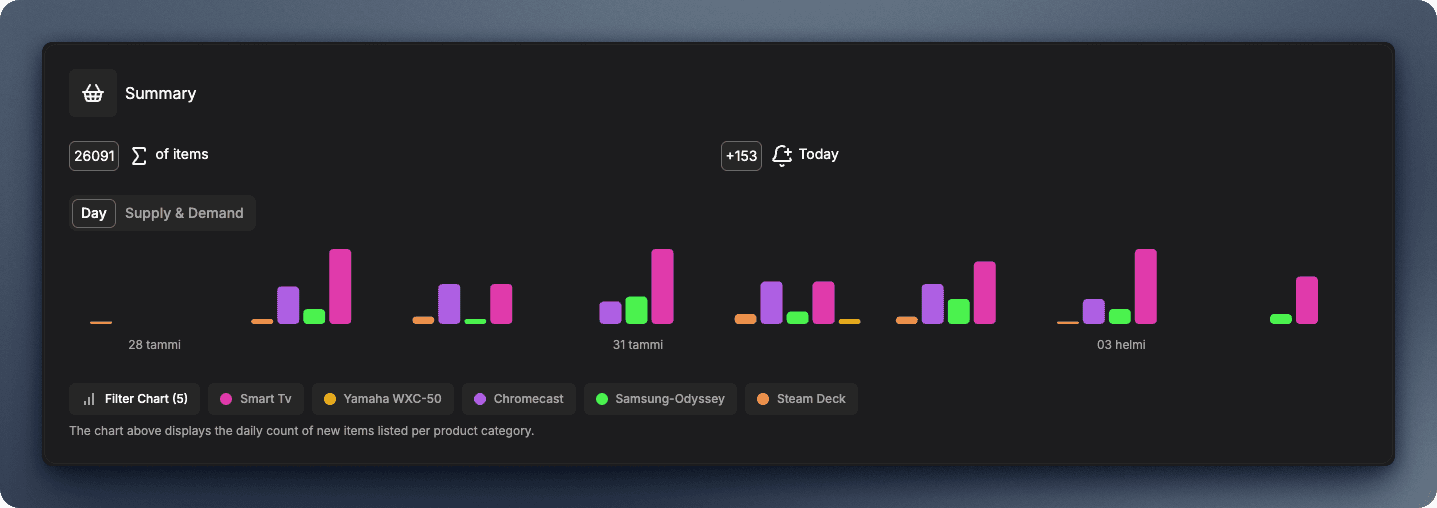
Day View A stacked bar chart showing daily item counts across your tracked product categories. Each category is color-coded for easy identification, and you can see the last 7 days of activity at a glance.
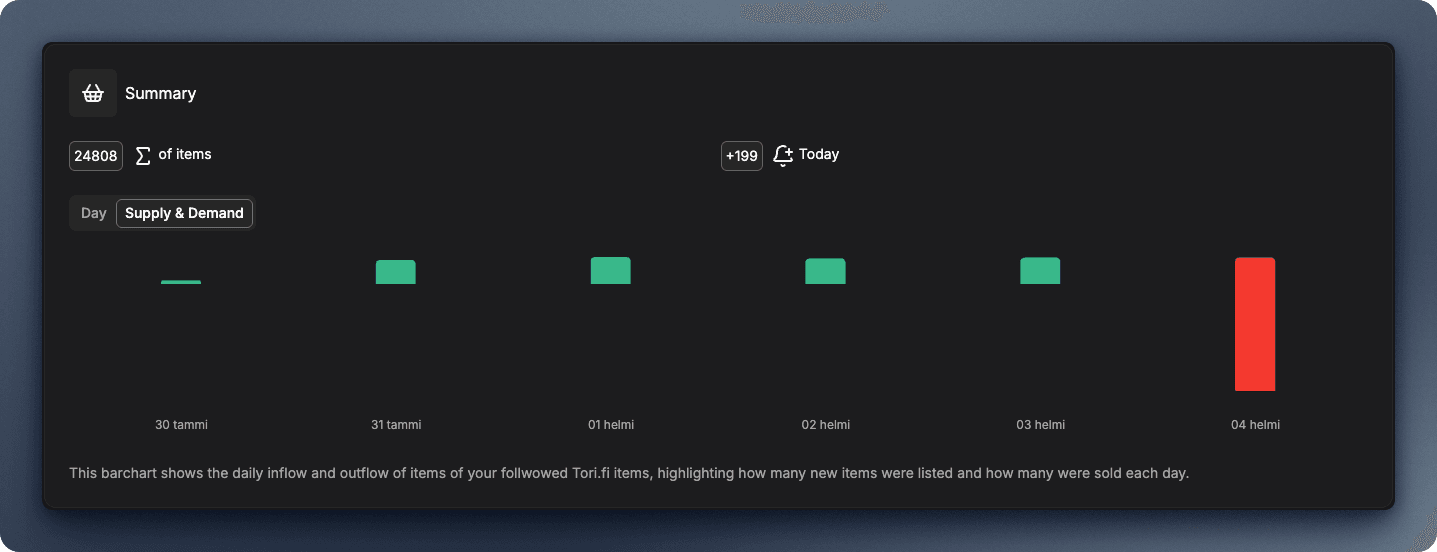
Supply & Demand View A comparison chart showing the daily "inflow" (new items added) versus "outflow" (items marked as sold) to help you understand market dynamics.
Filtering Your Charts
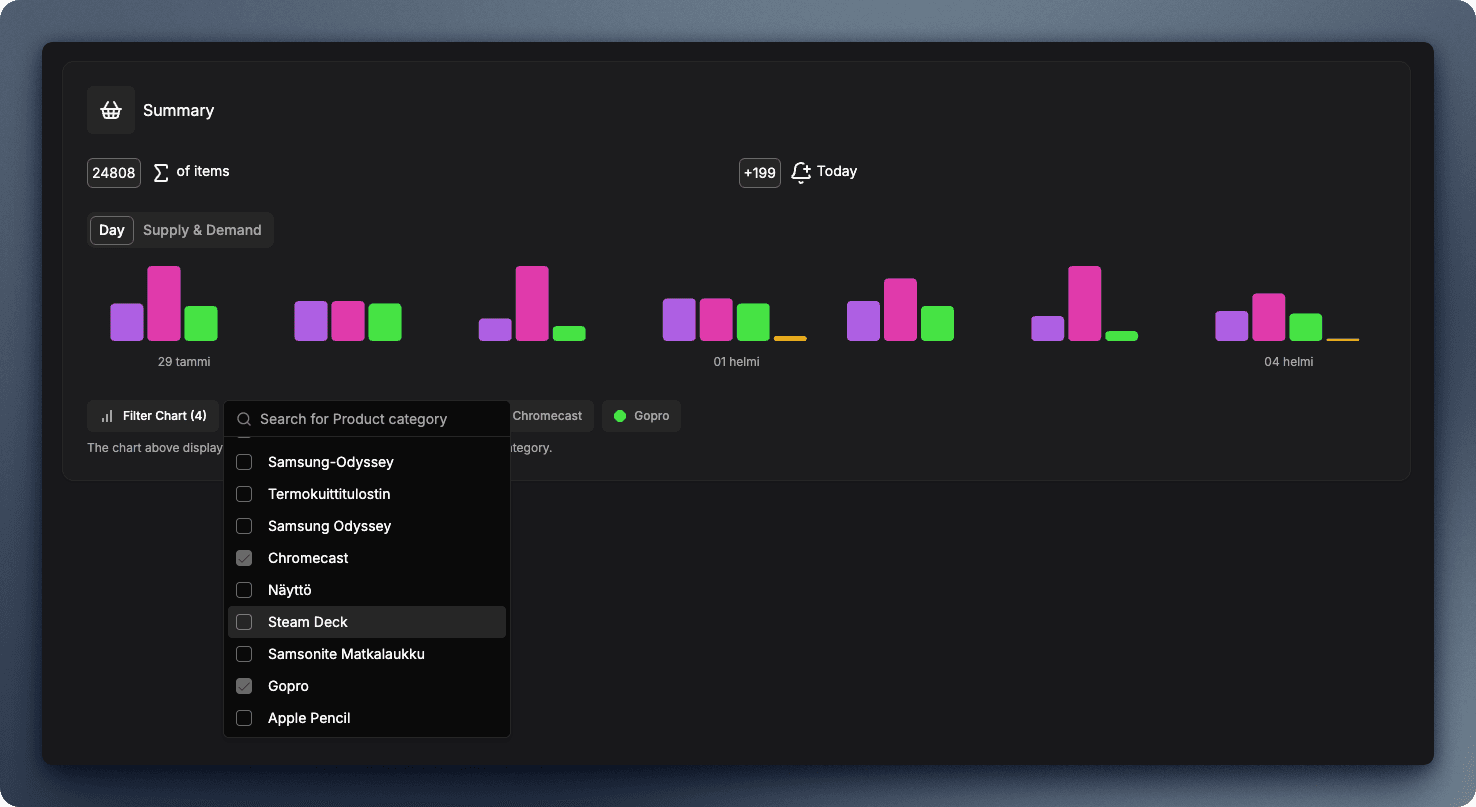
Use the Product Category Filter to customize your chart view:
- Click the filter button to open a searchable dropdown
- Select or deselect specific product categories
- Use "Select All" or "Clear All" for quick adjustments
- Your selected categories appear as color-coded badges below the chart
Item Listings
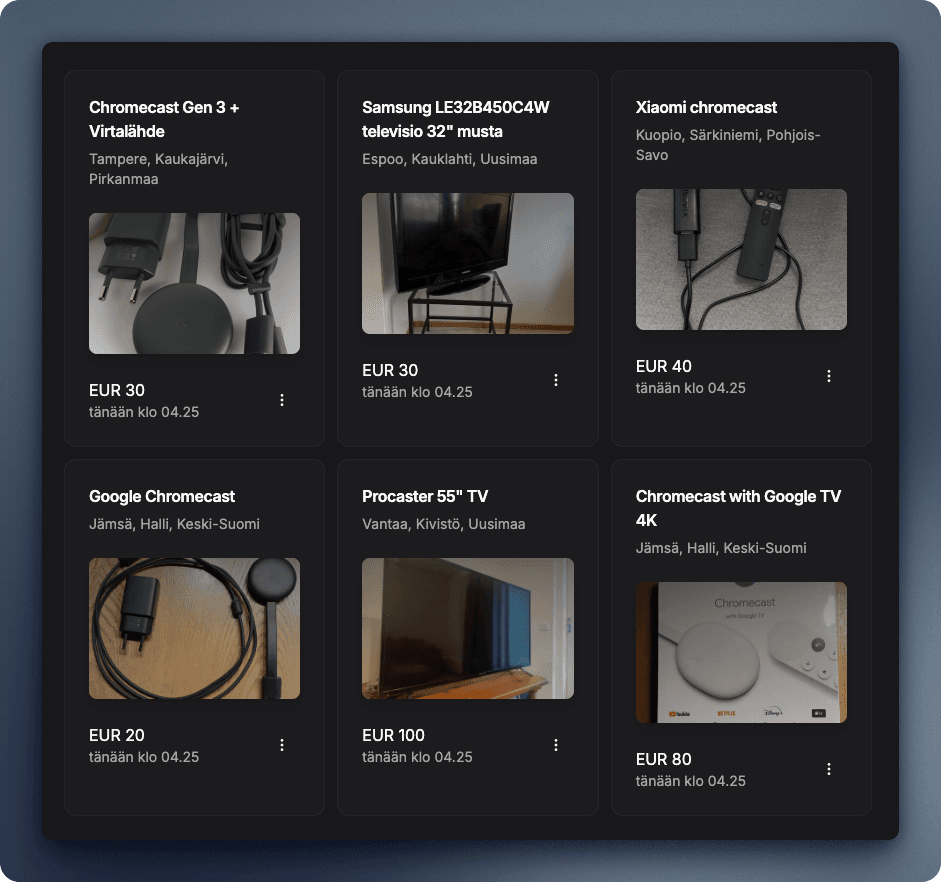
The main section displays your tracked items in a responsive grid layout that adapts to your screen size.
Item Cards
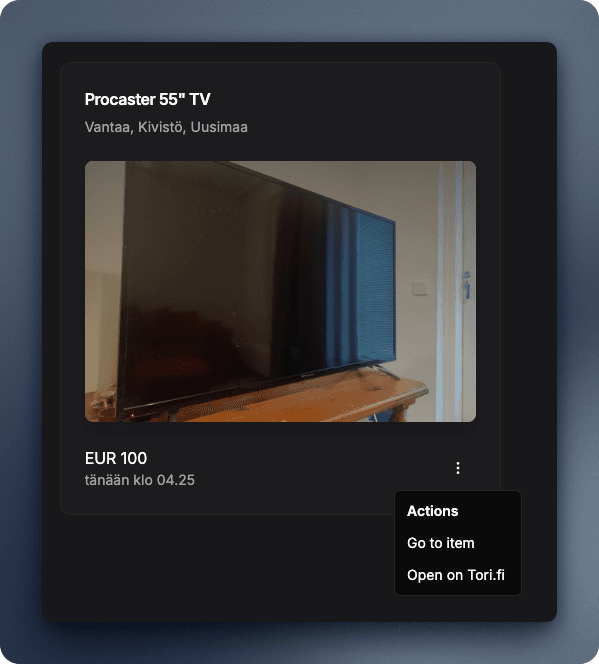
Each listing card shows:
- Product Image: Full-width photo of the item
- Product Name: Clear, capitalized title
- Reserved Badge: Marked with "Reserved" if the item status indicates it's on hold
- Area/Location: Where the seller is located
- Price: Displayed in EUR format
- Date Posted: Relative time (e.g., "3 days ago"), converts to full date on hover
Item Actions
Every item card includes an actions menu with quick access to:
- Go to Item: Navigate to the detailed item page within BetterTori
- Open on Tori.fi: Visit the original listing directly on Tori.fi (opens in new tab)
Filtering & Search
The dashboard provides powerful tools to find exactly what you're looking for:
Sort Options
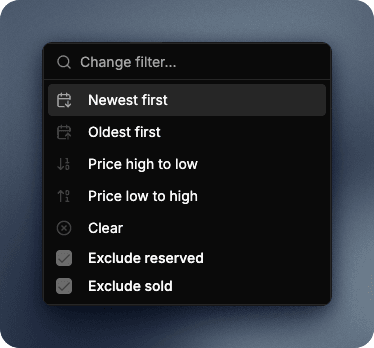
Change how items are sorted:
- Newest First: See the most recent listings
- Oldest First: Find items that have been listed longest
- Price: High to Low: Sort by price descending
- Price: Low to High: Sort by price ascending
Status Filters
Refine your view with checkboxes:
- Exclude Reserved Items: Hide items marked as reserved/on hold
- Exclude Sold Items: Hide items that have been sold
Date Range Filter
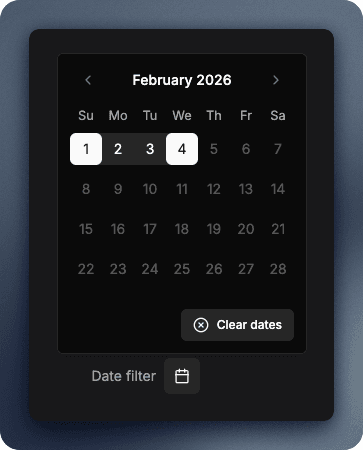
Select a custom date range to see items posted within specific dates:
- Click the calendar icon to open the date picker
- Select "From" and "To" dates
- Clear the filter anytime with the "Clear" button
- The selected range displays below the filter controls
Search Bar
Use the search input for full-text searching across all your tracked items. After typing your query, click the search button or press Enter to view results.
Pagination
When you have many items, the dashboard paginates the results:
- Navigate between pages using the pagination controls
- See the total count of items matching your current filters
- Jump to specific pages or use Previous/Next buttons

Getting Started
When you first use BetterTori and have no items tracked, the dashboard shows a Getting Started section with:
- Your unique email forwarding address:
notifications+<your_user_id>@bettertori.fi - Instructions to forward Gmail notifications from Tori.fi to this address
- A warning indicator prompting you to set up email forwarding
Once you start forwarding emails, items will automatically appear on your dashboard.
You can learn more about settings up the email forwarding here
Navigation Sidebar
The left sidebar provides quick access to all BetterTori features:
- Dashboard: Your current view (home)
- Notifications: See new items with an unread count badge
- Items: Browse items by product category
- Search: Dedicated search page for advanced filtering
- Products: Manage your tracked product categories
- Map: Geographic view of your items
- Parsed Emails: History of processed emails
- Settings: Configure your account and preferences
Tips for Using the Dashboard
- Check the Daily Count: Monitor the "Today's New Items" number to stay on top of fresh listings
- Use Chart Filtering: Focus on specific product categories by filtering the chart view
- Sort Strategically: Use price sorting when comparing similar items
- Monitor Sold Items: The Supply & Demand chart helps you understand how quickly items are selling
- Track Notifications: Watch the notification badge to see when new items arrive
Next Steps
Once you're comfortable with the dashboard, explore:
- Notifications - Stay updated on new listings
- Search - Find specific items across all your data
- Map - View items geographically
- Settings - Configure your tracking preferences
Features
Explore the powerful features of BetterTori that enhance your Tori.fi experience, including advanced search filters, AI-powered recommendations, and personalized notifications.
Notifications
Stay up-to-date with new items from your tracked Tori.fi searches. Learn how BetterTori's notification system alerts you to new listings and important changes.