 Bettertori Docs
Enable and Disable Products
Learn how to temporarily pause or resume tracking for specific product categories. Control which Tori.fi searches are active without deleting your saved products.
Enable and Disable Products
BetterTori allows you to temporarily enable or disable product categories you've set up to track. This gives you full control over which searches are actively monitored without losing your configuration.
What Is Product Enable/Disable?
When you disable a product category, BetterTori will temporarily stop processing email notifications for that specific search. The product remains saved in your account with all its settings intact, but no new items will appear until you re-enable it.
Common Use Cases
- Taking a break: Going on vacation and don't want to receive notifications for a while
- Seasonal items: Only track winter sports equipment during winter months
- Budget control: Pause tracking expensive categories temporarily
- Focus mode: Reduce notification noise by disabling non-essential categories
- Market research: Compare prices without actively buying
How It Works
┌─────────────────────────────────────────────────────────────────────────────┐
│                    PRODUCT STATUS FLOW                                       │
└─────────────────────────────────────────────────────────────────────────────┘

    ENABLED                              DISABLED
       │                                     │
       ▼                                     ▼
┌──────────────┐                    ┌──────────────┐
│   Product    │                    │   Product    │
│   Active     │                    │   Paused     │
├──────────────┤                    ├──────────────┤
│ ✓ Emails     │                    │ ✗ Emails     │
│   parsed     │     ────────▶      │   ignored    │
│ ✓ New items  │    Disable         │ ✗ No new     │
│   tracked    │                    │   items      │
│ ✓ Dashboard  │                    │ ✓ Existing   │
│   updated    │                    │   items stay │
│ ✓ Search     │                    │ ✓ Can search │
│   available  │                    │   existing   │
└──────────────┘                    └──────────────┘
       ▲                                     │
       └─────────────────────────────────────┘
                 Enable (Resume)

┌─────────────────────────────────────────────────────────────────────────────┐
│  IMPORTANT NOTES                                                             │
├─────────────────────────────────────────────────────────────────────────────┤
│                                                                              │
│  • Disabling does NOT delete the product or its history                     │
│  • Existing items remain in your dashboard and search results               │
│  • You can re-enable the product at any time                                │
│  • The Tori.fi saved search itself is not affected                          │
│  • Only BetterTori's processing of notifications is paused                  │
│                                                                              │
└─────────────────────────────────────────────────────────────────────────────┘
Managing Product Status
Disabling a Product
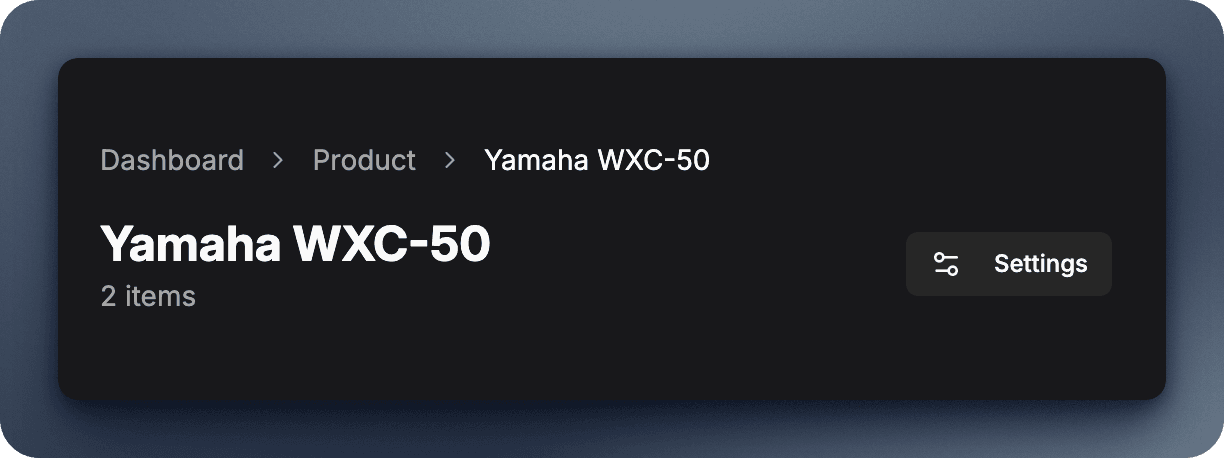
- Navigate to your Products page
- Find the product category you want to pause
- Click the Settings (gear) icon on the product card
- In the dialog that opens, you'll see the current status
- Toggle the switch to Disabled
- Click Save Changes
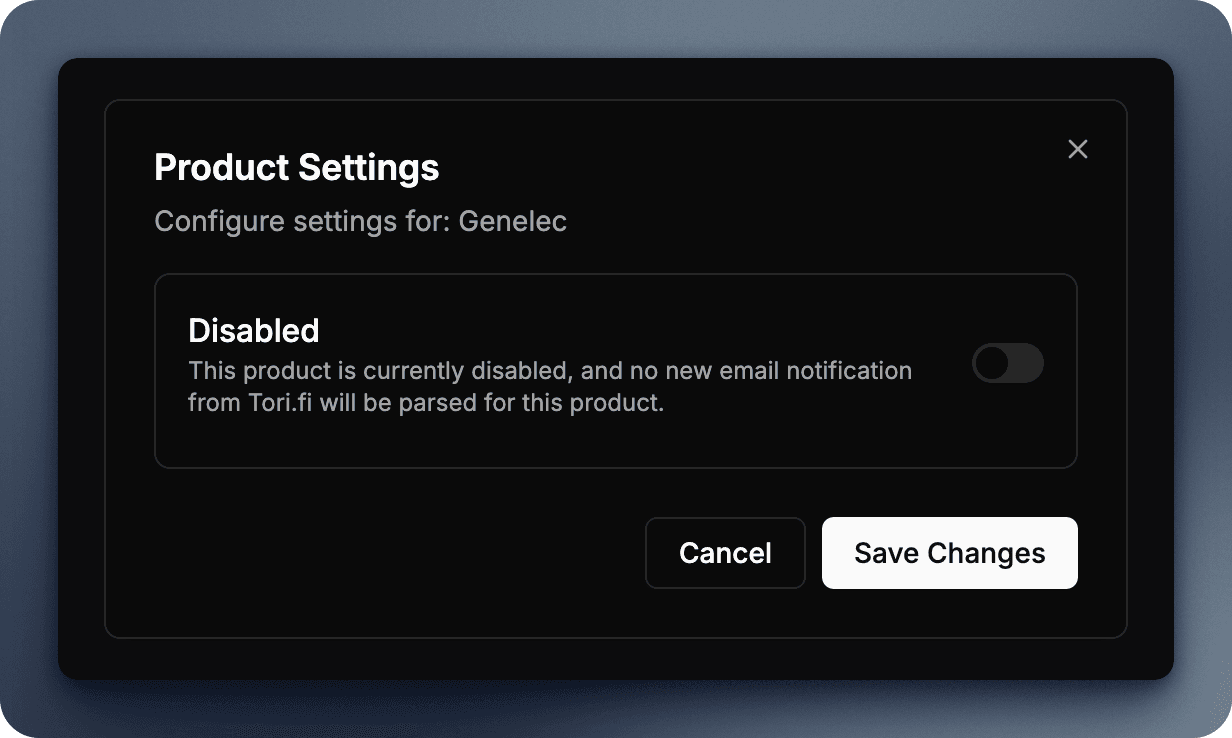
What happens when you disable:
- The product card will show a "Disabled" badge
- New Tori.fi email notifications for this product will be ignored
- No new items will be added to your dashboard
- You won't receive notifications for this product
- All existing items remain accessible
Enabling a Product
- Go to your Products page
- Find the disabled product (marked with a badge)
- Click the Settings (gear) icon
- Toggle the switch to Enabled
- Click Save Changes
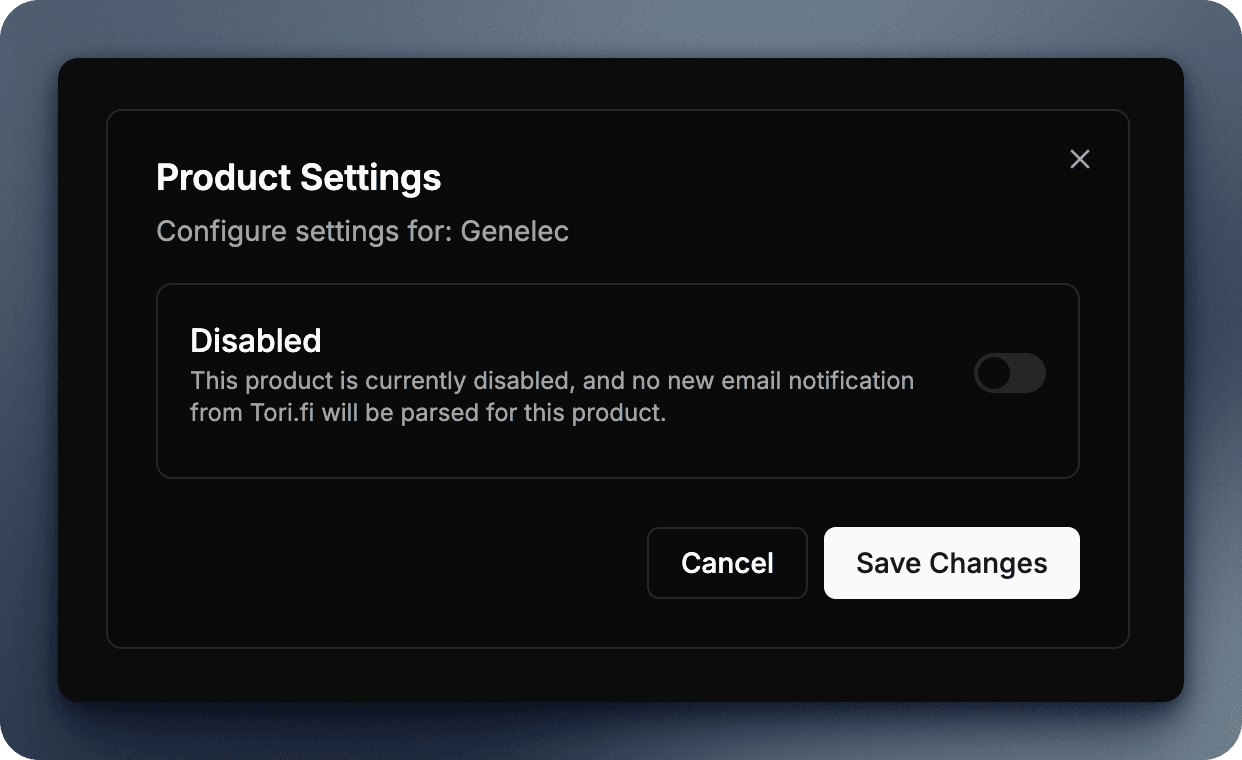
What happens when you re-enable:
- The product immediately starts processing new emails again
- You'll start receiving notifications for new items
- Your dashboard will update with any items that matched during the disabled period
- The "Disabled" badge disappears from the product card
Visual Indicators
On the Products Page
- Enabled Products: Normal appearance, no special badge
- Disabled Products: An
Alertwill be displayed indicating the product is currently in disabled state
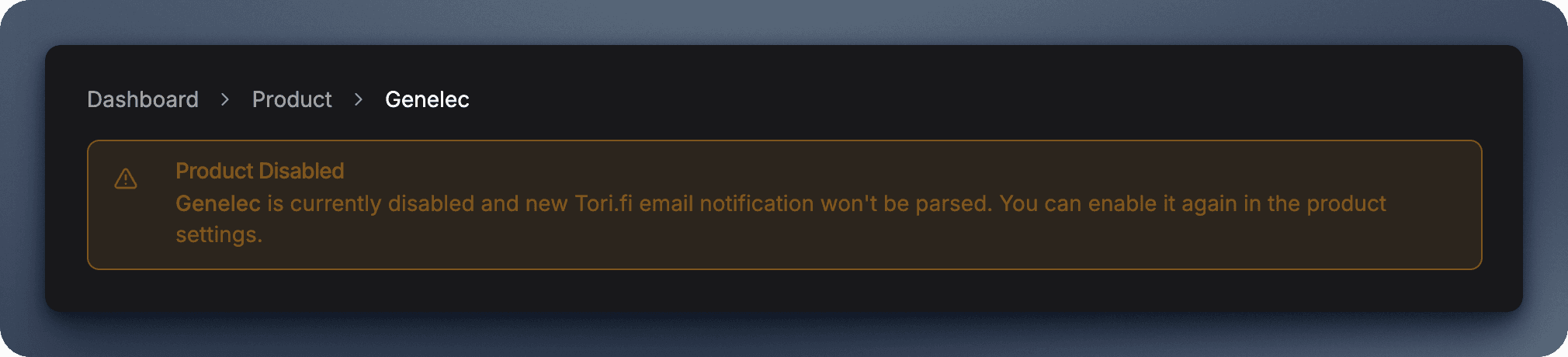
In Your Dashboard
- Disabled products still appear in filters and charts
- Existing items from disabled products remain visible
- You can still search through items from disabled products
In Sidebar
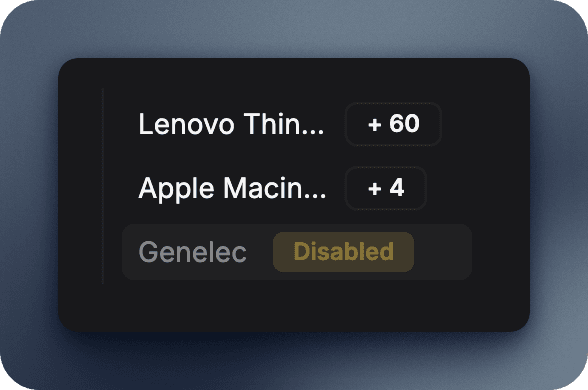
In the application sidebar on the left, disabled products will have a Disabled badge.
Managing Multiple Products
If you track many product categories:
- Disable non-essential categories during busy periods
- Keep essential categories enabled for must-have items
- Use seasonal patterns: Disable ski equipment in summer, bikes in winter
Re-enabling After a Break
When you re-enable a product after some time:
- Check the date range: Use the dashboard date filter to see what you missed
- Review new items: Sort by "Newest First" to see recent listings
- Adjust price expectations: Market prices may have changed
- Update your search criteria on Tori.fi if needed
Combining With Other Features
With Notifications
- Disabled products won't trigger notification emails
- Re-enabling restores normal notification behavior
- Use this to create "quiet hours" for specific categories
With Search
- Search includes items from both enabled and disabled products
- Use this to review historical data from paused categories
- No impact on search functionality
With Map View
- Map displays items from all products regardless of status
- Use the map to see geographic distribution even for disabled categories
Notifications
Stay up-to-date with new items from your tracked Tori.fi searches. Learn how BetterTori's notification system alerts you to new listings and important changes.
Parsed Emails
Track and review your Tori.fi email processing history. See which emails were parsed, what items were found, and analyze your notification trends over time.